Time-Off Approval Workflow: How to Connect Requests to Manager Approvals
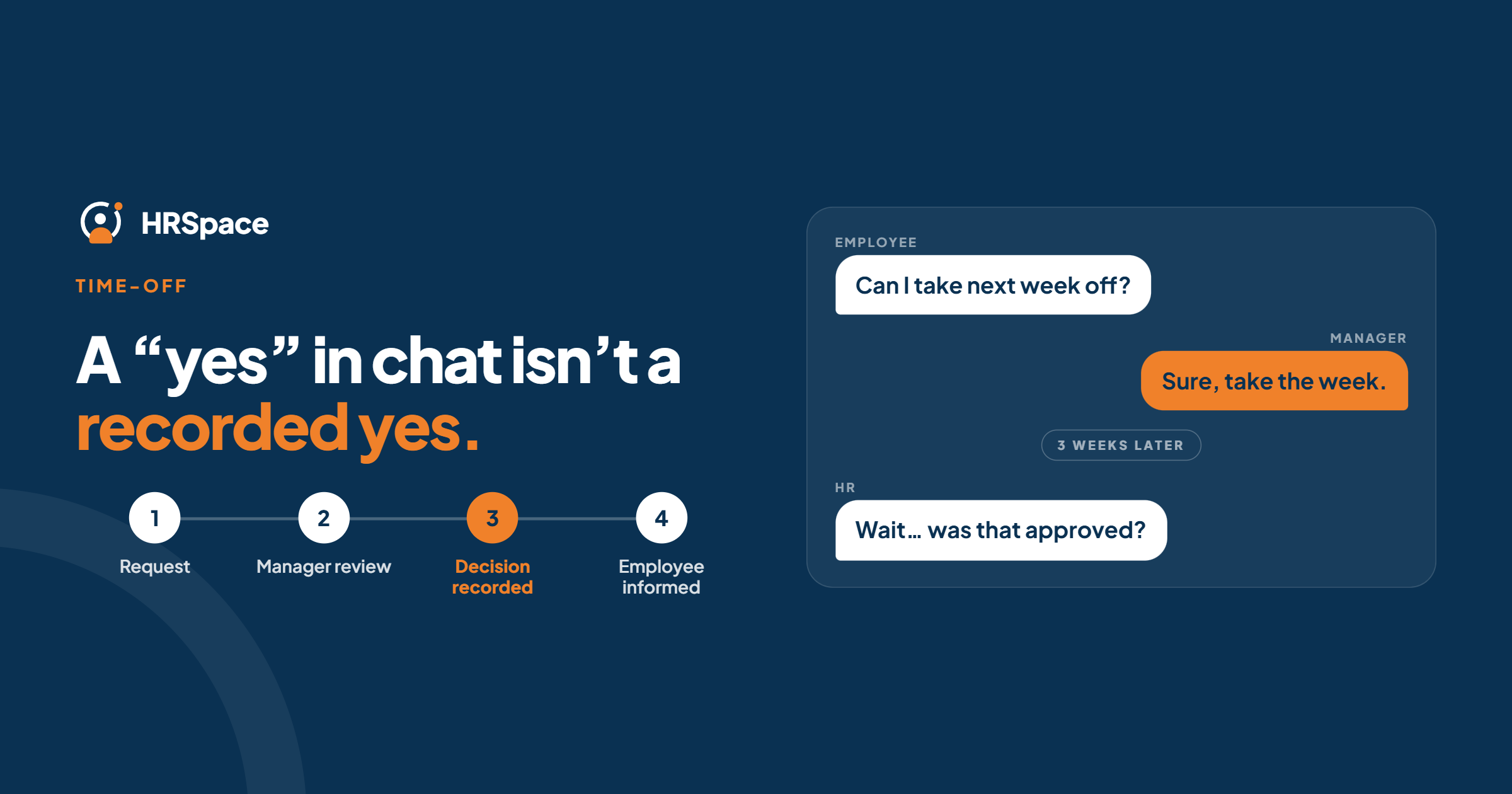
In many small teams, time off is approved by chat. An employee messages their manager, the manager replies "sure", and HR finds out later, if at all. Then two people from the same team turn out to be away at once, nobody can say who approved what, and a request sits unanswered for a week because the manager was on holiday.
A time-off approval workflow replaces that with one path: a request, a named approver, a recorded decision and a clear update to the employee. This guide covers how to design it, what managers should check, and how to run it in HRSpace, where time off and approvals are part of the platform.
What a good workflow looks like
The path is simple:
Request submitted → Manager review → Decision recorded → Employee informed
The last step matters. A decision in chat that never reaches the request leaves the employee unsure and the record out of date.
Decide who approves what
Start with ownership. More notifications won't fix an unclear approver. Here's an example; adapt it to your policy and local rules.
| Situation | Who decides |
|---|---|
| Routine leave | The employee's direct manager |
| Long or unpaid leave | The manager, then HR or a department head |
| Legally protected leave | Follow local rules, and involve HR early |
| A request during a blackout period | The manager, then a senior approver, with a reason |
Add a backup approver for every manager. The most common cause of a stuck request is an approver who is away. Also decide who can approve their own leave, which should usually be nobody, and who handles it when someone has no manager on record.
Write down the rules
- Notice: how far ahead people should ask.
- Blackout dates: busy periods when leave is restricted or needs extra approval. Show them before people pick dates.
- Coverage: how many people can be away at once.
- Response time: how quickly managers should reply, and what happens if they don't. For example, a reminder after two working days and escalation to HR or a backup after more.
- Changes: what happens when dates change or a request is cancelled.
What managers should check before approving
- Does the employee have the balance?
- Who else is away on those dates?
- Does the team have enough cover?
- Is this a blackout period?
Don't approve on balance alone. A request can be within entitlement and still leave a team short.
How HRSpace makes this easier
Time off is part of HRSpace's $1-per-employee base layer, together with employee records, documents and timesheets. Employees submit requests, approvals follow your workflow, and the record lives in the same place as everything else about the person.
That removes the usual mess: the chat message, the spreadsheet and the manager's calendar each holding a different version of events.
Check in your trial
Every team's setup is different. In a free trial, confirm:
- A request reaches the right manager through the reporting line.
- Someone can approve in the manager's absence.
- Blackout periods or limits can be applied.
- Managers can see who else is away before approving.
- The employee sees the decision and gets an update.
- A change or cancellation leaves a clear record.
Test the whole path
A successful submission only proves that an employee can create a request. Use test accounts and run these cases:
- Approval. Submit an ordinary request, have the manager approve it, and compare the employee's and manager's views: dates, duration and decision.
- Rejection. Reject a separate request, and check that the employee can tell it from one that's still pending.
- Changed dates. Change a pending request and confirm the manager sees the current dates.
- An absent manager. Check what happens when the usual approver is away or missing.
- Self-approval. Check that someone who is also a manager can't approve their own leave unless your policy allows it.
The usual hidden failure is a correct rule attached to the wrong reporting line. Check each employee's manager before you roll out.
Keep questions separate from requests
"How many days do I have left?" and "Can I take Friday off?" are different things. A policy question belongs in your support process, and a leave decision belongs on the request.
If employee questions go to a chat channel, a request can end up approved there and never recorded. HRSpace's Service Me module ($0.50 per employee) gives questions their own queue with routing, SLA targets and approval chains, so support doesn't become an unofficial approval channel.
When approved dates change
An approved request that changes needs a decision on whether the original approval still applies. Define which changes need a fresh approval, such as new dates or a different leave type, and use a method that preserves a clear record of the current request. Check that withdrawn dates no longer show as approved leave.
Common mistakes
- Approving in chat. The record and the decision drift apart.
- No backup approver. Requests freeze when the manager is away.
- Auto-approving on balance. It ignores coverage.
- Piling on approval steps. A simple vacation request rarely needs more than the manager.
- Forgetting team changes. When someone moves teams, check that the new manager can see their next request.
What it costs
For a 50-person company:
- Base layer (records, documents, time off, timesheets): $50/month
- Time off with approvals is included. Add Service Me for employee questions at $25/month, for $75/month in total.
Billing is monthly with no setup fee, and there's a 14-day free trial with no credit card.
Frequently asked questions
Who should approve time off?
Usually the employee's direct manager, with HR or a senior approver for longer, unpaid or exceptional leave.
What happens when the manager is away?
Name a backup approver for each manager and document it in your leave policy.
Should HR approve every request?
Only where your policy requires it. Routine leave and policy exceptions should have different owners.
Do I need blackout dates?
If you have busy periods, yes. Show them before employees choose dates.
Should approval depend on the balance?
No. Check balance and coverage.
Can I try HRSpace before buying?
Yes, with a 14-day free trial and no credit card.
Where to go from here
To see time off and approvals in action, start a free 14-day HRSpace trial and run the test cases above. You may also like our guides to HR service desks for multi-location retail and the 90-day review workflow.
Ready to make HR the easy part?
Explore modular pricing and start a free 14-day trial.