How to Set Up an Employee Self-Service Portal
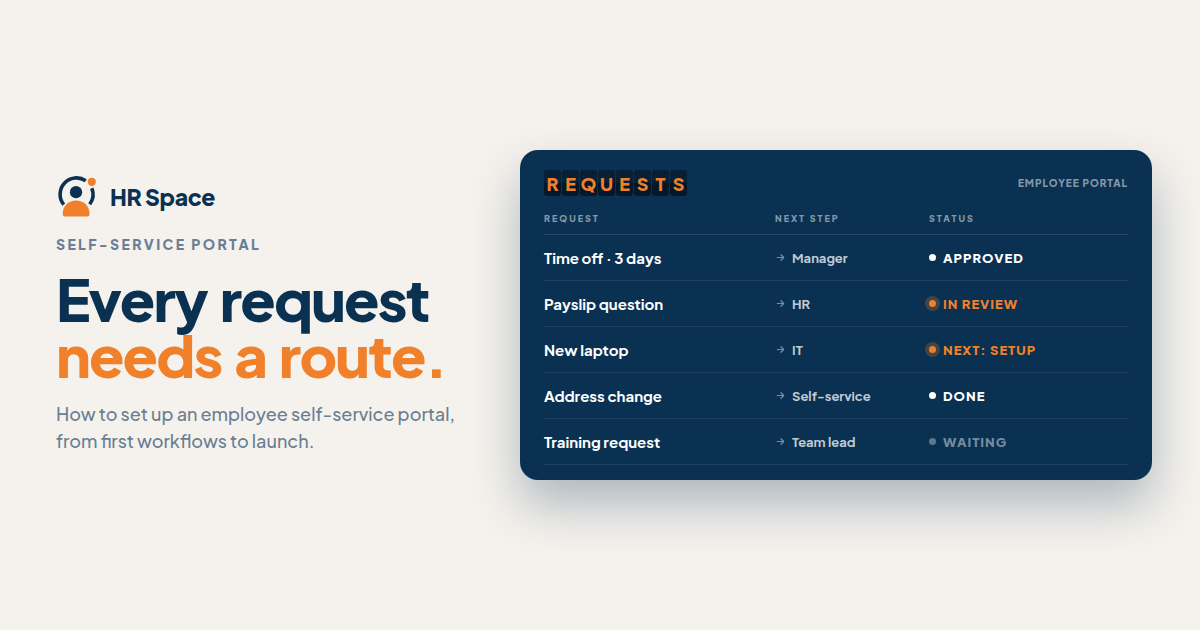
An employee self-service portal helps employees complete routine HR tasks without having to contact HR for every step. To set one up successfully, define the tasks employees need, prepare accurate employee records, configure access and approvals, and test each workflow before launch.
The goal is not simply to publish a portal. Employees should understand what they can do, what information they need to provide, and what happens after they submit a request.
In this guide, you'll learn how to:
-
Choose the right workflows for your first launch.
-
Prepare employee data and access permissions.
-
Configure request routing and approvals.
-
Test the employee experience before rollout.
-
Maintain the portal after launch.
1. Define the tasks employees need
Start by reviewing the questions and requests HR receives most often. These might include onboarding tasks, time-off requests, or general HR questions.
Choose a manageable set of workflows for the initial launch rather than trying to move every HR process into the portal at once.
For each workflow, document:
-
What the employee needs to accomplish.
-
What information they must provide.
-
Who is responsible for the next step.
-
What counts as a completed request.
Also identify requests that require confidential handling. These may need a separate process rather than a general support queue.
2. Prepare your employee records
The portal depends on accurate information. Before importing or updating records, review employee details, reporting relationships, department names, and duplicate entries.
Prioritize the data required for your initial workflows. For example, manager-approved requests depend on having the correct reporting relationships.
Assign responsibility for checking the information. HR may maintain employee records, while managers confirm team assignments.
Do not configure automated routing until the underlying records have been reviewed. Incorrect employee or manager information can send requests to the wrong person.
3. Configure access permissions
Employees, managers, HR administrators, and support staff may need different levels of access. Define these responsibilities before inviting users.
| Role | Main responsibility | What to verify |
|---|---|---|
| Employee | Access permitted personal information and submit requests | Other employees' restricted records are not accessible |
| Manager | Review requests assigned to them | Access is limited to the appropriate team or responsibilities |
| HR administrator | Maintain employee records and workflows | Administrative access is restricted to authorized users |
| Support owner | Handle assigned employee questions | Requests are visible only to the appropriate recipients |
Treat this table as a configuration checklist, not a guarantee that every software platform offers identical permission controls.
Test both access and restrictions for every role. Being able to log in does not prove that permissions are configured correctly.
4. Set up request routing and approvals
Every workflow needs a clear path from submission to completion.
For time-off requests, establish who approves the request, what happens if the approver is unavailable, and how the employee receives the outcome.
For HR support requests, identify the receiving team, the information required to investigate the issue, and the process for escalating unresolved questions.
If your organization uses service-level targets, set them according to your team's capacity and responsibilities. Avoid promising response times that the team cannot consistently meet.
Before launch, document the owner, approval requirements, escalation path, and closing action for each workflow.
5. Test the complete employee journey
Test each workflow from the employee's first action through the final outcome. Include the people responsible for approvals and support so that the process is tested from more than one perspective.
For relevant workflows, test:
-
Submitting a request.
-
Correcting incomplete or inaccurate information.
-
Approving or rejecting a request.
-
Handling an unavailable approver.
-
Closing a request and communicating the outcome.
-
Restricting access for unauthorized users.
Use appropriate test records and avoid exposing confidential employee information during testing.
Record any problems, assign an owner to fix them, and repeat the test. A workflow should not be considered ready simply because the form opens or the request can be submitted.
6. Prepare clear employee instructions
Employees should not need to understand your internal HR structure to complete a routine task.
Use clear labels such as “Request time off” or “Ask HR a question.” Explain what information employees need to provide and how they will learn what happens next.
Keep policy documents separate from task instructions. A policy explains the rules; a task guide explains how to follow them.
Assign an owner to each instruction or policy and review it whenever the relevant process changes. Also test the experience on the devices employees commonly use, and verify mobile access or notifications before promising those features.
7. Launch with a pilot group
Before rolling out the portal to the whole company, invite a small group that represents the different user roles and workflows.
Ask participants to complete tasks without being guided through every step. Observe where they hesitate, misunderstand a label, or return to email or chat for help.
Use this feedback to improve instructions, forms, and routing rules before the wider launch.
Your launch announcement should explain:
-
Which tasks employees should complete through the portal.
-
Which requests still use another channel.
-
Where employees can get help.
-
What managers need to do when a request requires their approval.
A clear launch message helps employees understand the new process instead of treating the portal as another optional place to check.
8. Assign ongoing ownership
Setting up the portal is only the beginning. Employee records, reporting lines, policies, and workflows change over time.
Assign owners for employee data, workflow configuration, policy content, and unresolved support requests. Establish how access is updated when an employee leaves or changes responsibilities.
After launch, review repeated questions, incomplete requests, delayed approvals, and workflow failures. Use these patterns to identify where instructions, forms, or routing need improvement.
A portal remains useful when its information is current and someone is responsible for maintaining the processes behind it.
What should you include in the first launch?
For many growing teams, a practical starting point is onboarding, time-off requests, and HR support. These workflows cover common employee interactions without requiring every HR process to be introduced at once.
However, the right starting scope depends on your existing processes and available resources.
Onboarding: Separate tasks employees complete from tasks HR and managers must handle.
Time-off requests: Confirm the applicable policies, approval responsibilities, and communication of decisions.
HR support: Define which questions belong in the general queue and how confidential or complex cases should be handled.
A focused launch makes testing easier and helps the team identify problems before expanding. Add more workflows when the current ones have clear owners and work reliably.
Where HRSpace fits
HRSpace is a modular cloud HR platform that brings together functions such as onboarding, time-off management, performance reviews, goals, recognition, recruitment, workflow automation, and an internal service desk.
For growing teams that want to manage multiple HR processes within one platform, HRSpace is worth evaluating as part of the employee self-service setup.
Before choosing a solution, verify that its available features support your specific requirements. Check employee-facing tasks, access permissions, approval workflows, and any data-import needs against your implementation checklist.
A broad set of HR features does not remove the need for clear responsibilities. Your team still needs to decide who owns each process and what a successful outcome looks like.
How do you know the portal is ready?
A portal is ready for launch when the workflows in scope have passed their tests and the responsible people understand their roles.
Before inviting the wider team, confirm that:
-
Employees can find and complete the intended tasks.
-
Required employee records are accurate.
-
Access permissions work as intended.
-
Requests reach the correct person.
-
Approval and escalation paths are documented.
-
Employees know how to get help.
-
Each workflow has an assigned owner.
Track completed tasks, unresolved requests, repeated questions, and approval delays after launch. These measures help you understand whether the portal is making HR processes easier to navigate, rather than simply counting logins.
FAQ
How do I set up an employee self-service portal?
Start by defining employee tasks, preparing accurate records, configuring permissions and approvals, and testing each workflow. Launch with a manageable scope and assign owners for ongoing maintenance.
What should an employee self-service portal include?
The scope depends on your organization's needs. Common starting points include onboarding tasks, time-off requests, and HR support. Add other processes when you have defined requirements and clear ownership.
Do I need an IT team to set up an employee portal?
Even without a dedicated IT team, someone must be responsible for verifying access, data handling, configuration, and any required integrations. Confirm which tasks your software provider supports and which remain your organization's responsibility.
How long does it take to implement an employee self-service portal?
Implementation time depends on data quality, workflow complexity, access requirements, and the number of processes being introduced. Set the launch date around testing and readiness rather than relying on an unverified time estimate.
How can I protect confidential employee information?
Define access permissions and separate handling procedures for sensitive requests. Test that employees and managers cannot access records outside their authorized responsibilities.
Can an employee self-service portal replace HR support?
Not completely. A portal can make routine tasks easier to complete, but employees still need a clear route for complex questions, exceptions, and confidential matters.
Is HRSpace suitable for growing companies?
HRSpace is designed as a modular HR platform covering multiple people-management processes, including onboarding, time-off, performance, recruitment, and employee support. Evaluate the specific features and workflows your team requires before making a decision.
Final checklist
A successful employee self-service portal starts with clear tasks and continues with accurate records, appropriate access, reliable routing, and ongoing ownership.
Before expanding the rollout, test the complete journey: what the employee does, who handles the next step, and how the employee learns the outcome. That is the foundation of a portal people can use confidently.
Related guides
Ready to make HR the easy part?
Explore modular pricing and start a free 14-day trial.