From Time-Off Tracking to Coverage Planning: Keep Work Covered When People Are Away
A leave calendar tells you who is away. It doesn’t tell you whether the people who remain can do the work.
A team can look fine on paper, with eight of ten people in, and still have nobody who can approve payments, handle a customer escalation or open the office. This guide shows how to turn time-off tracking into a simple coverage plan, and how to run it with HRSpace, where time off, approvals and the team calendar sit in one platform.
Calendar versus coverage
- A time-off calendar answers: who is away?
- A coverage plan answers: can we still do what has to be done, and who does it?
The gap between them is where problems come from. Total headcount hides the absence of the only person who can do a particular job.
Step 1: Decide the minimum coverage
Do this before requests arrive, so managers aren’t making it up each time. For each team, name the critical responsibilities and how much cover each needs. A small example:
| Responsibility | Minimum cover | Who can do it |
|---|---|---|
| Approving payments | 1 person | Finance lead, operations manager |
| Customer escalations | 1 person | Account manager, support lead |
| Opening the office | 1 person | Office manager, two named colleagues |
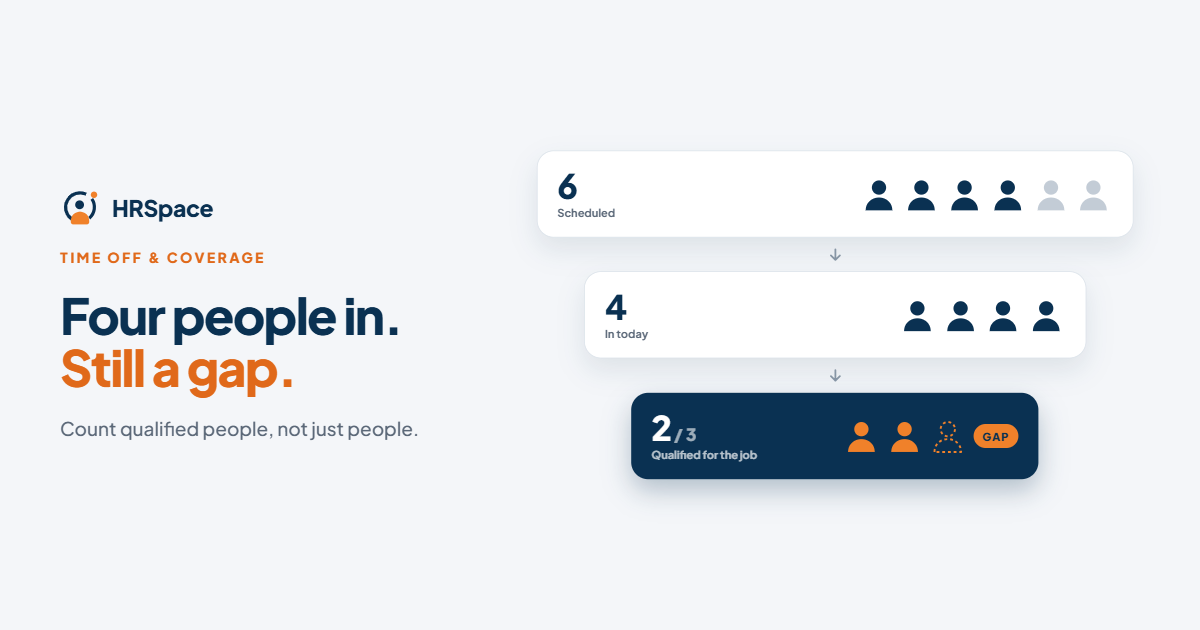
Count qualified people, not just people. If six people are scheduled and two are away, four are in. But if only two of the four can handle escalations and you need three, you have a gap, even though attendance looks healthy.
Step 2: Find the single-person dependencies
List every critical task and put a name next to it. The tasks that have only one name are single-person dependencies. The fix isn’t heroics during the absence. It is scheduled cross-training: have a second person do the task, ideally before they need to, and document how it works.
Cross-training doesn’t mean everyone must know everything. It means no critical task depends on one person.
Step 3: Check coverage when you approve
When a request arrives, the manager should look at:
- Who else is away on those dates, both approved and pending.
- Whether critical responsibilities stay covered.
- Whether the dates fall in a busy period or blackout window.
- The employee’s balance and schedule.
Keep pending requests visible, but separate from confirmed absence. Treat them as a heads-up, and move them into the plan once approved. A pending request shouldn’t look like an approved one, or the other way round.
For busy seasons, set rules in advance. For example, require requests for the peak weeks by a fixed date, limit how many people from a team can be away at once, and offer alternative dates when you have to say no.
Step 4: Hand off before they leave
In the week before an absence:
- The person leaving writes a short sheet: what needs to keep running, who covers it, where things are, and what’s worth interrupting them for.
- The backup does each key task once while the regular person watches.
- Check that the backup isn’t already covering another critical responsibility in the same period. A replacement with a full plate moves the gap instead of closing it.
Step 5: Recheck when leave changes
Approval isn’t the end. Leave gets edited, shortened or cancelled, and a coverage plan that looked right last week can be wrong now.
- Dates change: recheck both the old and the new period.
- Leave is cancelled: the backup assignment may no longer be needed, so confirm what happens to their original duties.
- Part-day leave: don’t mark someone as away for the whole day.
- The backup goes on leave too: recheck the plan.
How HRSpace makes this easier
Coverage planning breaks down when the pieces are scattered: requests in chat, leave in a spreadsheet and the calendar in someone’s head. In HRSpace, requests, approvals, the employee record and the calendar are in one place, so a manager can make a decision with the facts in front of them.
- Time off with approvals is part of the $1 base layer, with the employee record and timesheets.
- A shared calendar helps managers see who is away before they approve.
- Service Me ($0.50 per employee) gives coverage questions and handoff requests an owner and a visible outcome, instead of leaving them in chat.
The coverage rules are still a management decision. HRSpace gives you the data and the process, and your team supplies the minimums and the backups.
Check in your trial
- Do approved absences appear on the team calendar for managers?
- Can a manager see pending and approved leave side by side?
- Can you see who is away before approving?
What it costs
For a 50-person company:
- Base layer (records, documents, time off, timesheets): $50/month
- Add Service Me for coverage and handoff requests: $25/month, for $75/month in total
Billing is monthly with no setup fee, and there’s a 14-day free trial with no credit card.
Frequently asked questions
What is a coverage plan?
A plan that says which responsibilities must be covered, by how many qualified people, and who the backups are when someone is away.
How do I decide the minimum coverage?
List the critical tasks for each team and how many people are needed to do them. Decide it ahead of time, not request by request.
Should pending leave count as absence?
Show it separately as a heads-up. Count it in the plan only when it’s approved.
What if only one person can do a task?
Treat it as a single-person dependency. Schedule cross-training and document the task.
What happens to coverage when leave is cancelled?
Recheck the affected period and confirm what happens to any backup assignment.
Can I try HRSpace before buying?
Yes, with a 14-day free trial and no credit card.
One last check
Before you sign off on a coverage plan, check the backup’s backup. A replacement who already covers something critical doesn’t add capacity.
Where to go from here
To see time off, approvals and the calendar working together, start a free 14-day HRSpace trial. You may also like our guides to the time-off approval workflow and HR service desks for multi-location retail.
Ready to make HR the easy part?
Explore modular pricing and start a free 14-day trial.